🌐 English · Translate this article… <onlyinclude>
 |
This document is still a work in progress. It may contain inaccuracies or errors. |
</onlyinclude>
¶ Introduction
In this chapter, you can find a very useful and complete list of common Openbravo concepts and processes you will find all along Openbravo.
Each common concept or process is explained here in a "generic" way, however a more "specific" explanation of any concept or process might also be required to be provided as part of the chapter or section of this User Guide.
¶ Common concepts and processes
¶ Language
Openbravo allows to select the language of the application as a user preference.
Obviously the corresponding Openbravo 3 translation module needs to be installed as described in this article.
¶ Active flag
Every Openbravo window and tab has an Active flag which indicates if that record is available for use accross Openbravo or not.
¶ Header-Lines
Most Openbravo 3 Windows have a "Header-Lines" window structure.
Same applies to "Documents" such as Purchase Orders and Sales Invoices.
This structure implies that new records or documents creation requires to create the header first and then the lines.
Same applies in the case of removing a record from a window or removing a document, lines must be removed first.
¶ Lines-Create One
Once header window information has been filled-in and save, it is possible to create lines by:
- clicking on the link "Create One" located in "Lines" tab.
- or by putting the focus in the "Lines" tab and then pressing the buttons "Create new record in a form" or "Insert row".
¶ Mandatory Organization
Openbravo is a multi-organization ERP.
To learn more visit Organization
The Organization is a mandatory field in most Openbravo windows.
While creating a new record Organization field is automatically populated by Openbravo with the "Organization" set as "default" in the "Profile" window.
Openbravo allows the end-user to select another one.
¶ (*) Organization
While creating Master Data such as a new Business Partner or a Product:
- if the new entity has only a relationship with a specific organization or business unit in your company, select it from the Organization list.
- If the new entity has or might have a relationship with all or few of the organizations or business units in your company select (*) Organization from the list.
¶ Document-Document Nº
Every time a new document is created in Openbravo, a document number must be assigned to it.
Each Openbravo document type is linked to a document number sequence which can be setup as required. A document number can either be automatically provided by the system or manually entered by the end-user.
To learn more visit Document Type and Document Sequence.
¶ Mandatory fields
These type of fields are always shown in yellow, these fields are mandatory therefore can not be left empty.
¶ Defaulted fields
Openbravo populates some fields by default depending on:
- the configuration made in the system
- or depending on the data previously selected in a window
however defaulted fields can always be changed.
¶ Draft->Completed/Booked->Closed Document Status
Draft-Completed-Closed Document Status workflow is a very broadly used workflow within Openbravo:
- Documents such as a Requisition or a Purchase Order or a Sales Invoice are created first in a "Draft" status.
- A Draft" status means that the document could or could not have all the required information but the key thing is that it has not be booked in the system as "Completed"
- Once all the required information is filled in, they can be booked, therefore their status changes to "Completed" or "Booked".
- A further system action or an end-user manually action could change their status to "Closed". "Closed" status is the last one in chain, it implies that no further action can be executed.
¶ Copy Lines and Copy from Orders
These two buttons can be found in the "Purchase and Sales Order" header windows and help us on creating new order lines:
- "Copy Lines" allows you to create order lines by selecting the products already purchased/sold from/to the supplier/customer of the order header, within the "Consumption Days" time period
defined for the supplier/customer.To learn more about Consumption Days definition, visit Business Partner.
-
- This process button enables the "Copy from Orders" window which allows you to select the products and to change both the "Last Price" and "Quantity" fields as required.
- "Copy from Orders" allows you to retrieve at once all the order lines of several orders previously created for any supplier/customer, by using the "Copy from Orders Pick and Edit".
- "Copy from Orders Pick and Edit" window allows you to search the orders to copy by using the filter options available such as business partner, order dates, document number and order amounts, etc.
- It is important to remark that the Copy from Orders window shows both purchase and sales orders. Sales ones are configured as "Sales Trans." equal to Yes.
¶ Copy Lines and Create Lines From
These two buttons can be found in the "Purchase and Sales Invoice" header windows and help us on creating new invoice lines.
- "Copy Lines" allows you to retrieve at once all the invoice lines of an invoice previously created for any supplier/customer, by using the "Invoice Selector".
- "Invoice Selector" window allows you to search the invoice to copy by using the filter options available such as business partner, invoice dates and invoice amounts.
- It is important to remark that the invoice selector window shows both purchase and sales invoices types.Sales ones are also configured as "Sales Trans." equal to Yes.
- "Invoice Selector" window allows you to search the invoice to copy by using the filter options available such as business partner, invoice dates and invoice amounts.
- "Create Lines From" allows you to the select the orders or shipments/receipts lines pending to be invoiced.
- This process button enables the "Create from Invoice" window which does not allow you to add new lines or to change any data of the lines.
All the changes will have to be done later on once the lines are in the invoice lines tab.
-
- This process uses the values specified at product level for deferring the sales revenue and/or for deferring the purchase expense.
- Lines that were created while exploding a BOM non-stockable products, cannot be selected individually. Those lines will not be activated, so the non-stockable BOM product should be selected in order to select its components. The non-stockable BOM product will be saved as exploded.
ℹ️ Catatan: Starting from PR17Q2 "Create Lines From" button is disabled for "Credit Memo" invoice's type to prevent the creation of "Credit Memo" invoice's linked to "Orders" or "Shipments". Only "Reverse" invoice's type should be related to return "Orders" or "Shipments". For additional information, please review Document Type#Purchase Credit Memo and Document Type#Sales Credit Memo
ℹ️ Catatan: Starting from PR18Q4 The "Create Lines From" button has been replaced by two different buttons in each window: Sales Invoice: “Create Lines From Order”, “Create Lines From Shipment” Purchase Invoice: “Create Lines From Order”, “Create Lines From Receipt”
As part of the Create Invoice Lines From refactor project, since PR18Q4 the "Create Lines From" process is splitted in two new buttons in order to get a better user experience and performance without mixing together orders and shipments/receipts in the Sales Invoice and Purchase Invoice windows.
The “Create Lines From Order” button will just show Sales/Purchase order lines (depending on the window from which it was launched) that are ready to be invoiced. Different lines from different orders can be selected at the same time to be invoiced together.
The “Create Lines From Shipment”/“Create Lines From Receipt” buttons will just show Goods Shipment/Receipt lines (depending on the window from which it was launched) that are ready to be invoiced. Different lines from different shipments/receipts can be selected at the same time to be invoiced together.
An important change introduced is the possibility to filter the records when the P&Es are opened by a date range that can be configurable with a new Preference called Filter by documents processed since N days ago. This preference is used by the process to limit transactions starting from the current date to the defined days ago. If the preference is not defined then queries retrieve all records created since one year ago (365 days), else it will be filtered by the count of days defined as the preference value. User can remove the grid's default filter at any moment to show previous records.
¶ Create Lines From
This button can be found in the "Goods Receipt and Goods Shipment" header windows and help us on creating new receipts and shipments lines.
- "Create Lines From" allows you to the select the orders or invoices pending to be received/shipped:
- In the case of Goods Receipt - This process button enables the "Create lines from" window which does allows to change the quantity received and get it stored in a storage bin.
- In the case of Goods Shipment - This process button enables the "Create from Shipment" window which does not allow to do any change but just select the order or invoice lines pending to be shipped.
All the changes will have to be done later on once the lines are in the shipment lines tab.
Lines that were created while exploding a BOM non-stockable products, cannot be selected individually. Those lines will not be activated, so the non-stockable BOM product should be selected in order to select its components. The non-stockable BOM product will be saved as exploded.
¶ Document-Reactivate
Documents such as a "Purchase Order" or a "Purchase Invoice" with status "Completed" or "Booked" can not be changed unless they are "Reactivated".
"Reactivate" header process button helps to reactivate and later on change booked documents.
¶ Document-Void
Documents can be voided in case they are not needed anymore. Document void process creates a reversal document analogous to the original one.
For instance, if a purchase invoice for a total gross amount of 100.00€ is voided, document void process create a reversal purchase invoice document for a total gross amount of -100.00€
- Documents can be voided prior to be booked by using the "Complete" or "Book" header process button and then the action "Void"
- Documents can be voided after being booked, by using the "Reactivate" header process button and then the action "Void".
- No further action/change can be done in a document with status "Voided".
¶ Document-Post/Unpost
Once a document is posted to the ledger, Openbravo opens a new screen named "Journal Entries Report" which shows the ledger entries created for the document.
In case of posting a purchase invoice for instance, the ledger entries created would look like the ones shown below:
| Account | Debit | Credit |
| Product Expense | Line Net Amount | |
| Tax Credit | Tax Amount | |
| Vendor Liability | Total Gross Amount |
Back in the transactional window where the document was posted the process button "Post" related to the document (purchase invoice) has automatically turned into "Unpost" because the document is already posted to the ledger.
Same would happen in case the Accounting Background process is scheduled. This process automatically post documents if scheduled therefore the "Post" button automatically turns into "Unpost" for those documents automatically posted to the ledger.
Moreover, Openbravo allows to unpost the documents already posted to the ledger.
It is possible to revert or to unpost a document previously posted (manually or automatically) by using the process button "Unpost" related to the document, and then the option "Delete Accounting Entry".
Openbravo will show in the "Journal Entries Report" screen below journal entries in the case of reverting a purchase invoice posting:
| Account | Debit | Credit |
| Product Expense | Line Net Amount | |
| Tax Credit | Tax Amount | |
| Vendor Liability | Total Gross Amount |
If a document automatically posted by the accounting background process needs to be unpost and changed afterwards, it should be as well reactivated, otherwise the accounting background process will automatically post it once again.
That obviously depends on the frequency set while scheduling the accounting background process.
Additionally, it is always possible to review the ledger entries created for a document from the document itself by using the process button "Unpost" and then not selecting the option "Delete Accounting Entry".
That action opens the "Journal Entries Report" screen which shows the ledger entries linked to the document.
¶ Accounting
Once a document is posted to the ledger, Openbravo fills the accounting information of a document in the "Accounting" tab. The "Accounting" tab can be found in any document suitable to be post to the ledger.
The main information displayed in the "Accounting" tab is listed below:
- Organization
- General Ledger
- Accounting Date
- Account
- Debit
- Credit
- Description
All of these fields are shown in read only mode but description. The description of an accounting entry can be edited and changed as required, same as in the Accounting Transaction Details window.
It is important to remark that if the document is unpost, the accounting information is removed from this tab, therefore if the description was changed that information will obviously be lost.
¶ Accounting Entries Documentation
Details Accounting Journal specification.
¶ Document-Accounting Dimensions
A "Dimensions" section can be found in transactional document windows such as:
- Purchase Invoice header and lines
- Sales Invoice header and, lines
- Purchase Order header and lines
- Sales Order header and lines
- Amortization lines
- G/L_Journal header and lines
- or Financial account transaction.
therefore it is possible to select accounting dimension values to be saved at the time of posting a document to the ledger.
The financial report Accounting Transactions Details is the report to use to review all the dimension values entered in a document post to the ledger.
The dimensions are shown in the header and/or lines of the documents according to what has been configured:
- at client level, in those case were the "Client" centrally maintains the accounting dimensions
- at organization level, in those case were the "Client" does not centrally maintain the accounting dimensions or not all of them.
Note that there are "analytical" dimensions such as "Cost Center" which can be centrally maintained while there are others such as "Campaign" which can not be centrally maintained.
The full list of dimensions available is:
- Operational dimensions such as:
This is a mandatory dimension operational dimension as every document header needs to be related to an organization.
This dimension can turn into an "Analytical" one if configured to be shown and therefore used in the lines of a document.
This is a mandatory operational dimension at header document level but depending on the document type (i.e. mandatory in the case of a Sales Invoice header and not mandatory in the case of a G/L Journal).
This dimension can turn into an "Analytical" one if configured to be shown and therefore used in the lines of a document.
This is a mandatory operational dimension at lines document level but depending on the document type (i.e. mandatory in the case of Sales Invoice lines and not mandatory in the case of a G/L Journal).
This dimension can turn into an "Analytical" one if configured to be shown and therefore used in the G/L Journal lines.
This is not mandatory operational dimension at header document level.
This dimension can turn into an "Analytical" one if configured to be shown and therefore used in the lines of a document.
- Financial dimensions such as:
This is a mandatory financial dimension as every document post to the ledger needs to be posted through an account of the Chart of Accounts linked to the organization's general ledger.
This dimension is an organization's general ledger dimension.
- Optional Analytical dimensions which can be centrally maintained in the Client:
- And finally optional Analytical dimensions which can not be centrally maintained in the Client but configured as an organization's general ledger dimension:
- Activity
- Campaign
- Sales Region
- Asset
- Location From or Location/Address
- Location To or Location/Address
¶ Payment Plan
Every time an order is booked or an invoice is completed a Payment Plan is created for that order / invoice.
An order / invoice "Payment Plan" can be found in the corresponding tab of the Purchase & Sales Order & Invoice windows.
¶ Order's Payment Plan
In the case of Orders this tab displays only one read-only line which reflects information about the total expected amount to be paid or received and information about its fulfillment:
- the prepayments made or received against the order.
- the outstanding payment amount
- the last payment date
- and the number of payments made or received as well as the currency.
The payment plan of an order cannot be modified.
Note that every prepayment made or received against an order is detailed in the Payment Details tab of the order.
¶ Invoice's Payment Plan
In the case of Invoices this tab might contain several lines, a list of the scheduled payments with their due dates according to the Payment Terms specified for that invoice and also their fulfillment.
If an invoice is created from an order that already has a partial payment received against it the invoice automatically inherits the payment received against the order. For additional information review the How to manage prepaid invoices in payables and the How to manage prepaid invoices in receivables how to articles.
An invoice payment plan contains below relevant information:
- the payment Due Date is the original payment date agreed based on the Payment Terms specified for the invoice.
This date is a read-only date therefore it can not be changed but the "Expected Date", see next point.
This date is used as the reference date in some Financial Reports such as the Aging Balance Report.
- the payment Expected Date is the Date when the payment is expected to be paid. When a Payment Plan is created the expected date is the same as the due date, however it can be changed.
This date is used as the reference date in some Reports such as the Payment Report
- the Number of Payments made or received against the invoice's payment plan line.
- the "Amount Paid" and the "Amount Outstanding" to be paid of the invoice's payment plan line
- and the Days Overdue that is the number of days the payment plan line has not been fully paid since the expected date until current date.
An invoice payment plan can be modified if the invoice is not fully paid.
That is an Advanced Feature named Editable Payment Plan which needs to be unhide as described below:
- As "System Administrator" navigates to the "Windows, Tabs and Fields" window
- Search the "Sales Invoice" window by typing "Sales Invoice" in the field "Name.
- Navigate to the "Tab" tab and search the "Payment Plan" tab by typing "Payment Plan" in the field "Name".
- Navigate to the "Field" tab and remove the filters if any.
- Search the "Modify Payment Plan" field and set it as "Displayed" Yes.
- Log out and compile.
¶ Zero Payments numbering
Zero (0.00) payments are numbered with Payment-Document Nº Sequence and a sufix that is***Z*** [i.e. 1000397*Z*], that way "Zero" payments can be distinguished from the rest, as a zero payment cannot be either withdrawn/deposited from/in a Finnacial Account.
A zero payment can be created in Openbravo:
- when an invoice and a reversed invoice of same amount are paid by the same payment.
In that case a "Zero" payment is created including two payment lines for the same amount, a positive line including invoice amount, and a negative line including reverse invoice amount.
- after running Set New Currency business partner process, as one of the paymments this process creates, is a "Zero" amount payment that is a credit payment in the new currency.
- or when an invoice do not paid is voided.
¶ Payment Details
Payment Details tab can be found in the purchase & sales order/invoice windows.
This tab displays the details of the payments made or received against an order or invoice.
¶ Payment Monitor
Payment Monitor section allows to track the purchase & sales invoice payment status directly from the invoice window. In this section it is possible to know whether an invoice is fully paid or not. If the invoice has not been fully paid then the Payment Monitor informs the user how much has been received, how much is pending, the due date of the next payment and the amount that is expected to be received on that date. The status is updated automatically when any payment action happens and by a background process. The date when the payment status was last time calculated is displayed in the form. Grid filtering allows to filter invoices based on fully paid or not criteria.
¶ Costing Server
Costing Server is the process in charge of managing cost calculation according to the "new" Openbravo costing engine.
The cost of every "Product" related transaction is calculated by this process using a Costing Rule which needs to be configured for the legal entity.
The Costing Rule defines the costing algorithm to use to calculate the cost of the transaction/s and whether the warehouse is going to be used as a costing dimension or not.
Openbravo delivers "Average" and "Standard" costing algorithms.
Other costing algorithms such as FIFO can be implemented using Extension Modules.
Note that it is recommended to schedule the Costing Background process to get that the costs are automatically calculated.
There are two methods to define how the average can be calculated "Moving or Perpetual" and "Weighted or Periodic".
Openbravo current costing engine is based on "Moving or Perpetual Costing" calculation. That means that the average cost of a product is calculated based on the transactions flow, therefore issue transactions impact on the average cost, as described in below example:
a. buy 5 units at 1.05 on 1/01/2015. Total cost of 5.25
b. sell 1 unit on 1/01/2015
a. buy 5 units at 2.99 on 1/01/2015. Total cost of 14.95
b. sell 1 unit on 1/01/2015
A moving average (perpetual) would cost first sale at 1.05 and second sale at 2.13 because of the transaction flow.
A weighted average (periodic average) would cost first sale at 2.02 same as second sale, because the periodic weighted average takes into account all inbound entries.
Finally, it is important to remark that if your Openbravo instance needs to migrate to the new costing engine please review the Costing Migration Process article.
¶ Cost Adjustments
Overall Cost Adjustment feature is in charge of managing adjustments of already calculated "Average" costs, starting from Openbravo 3.0 15Q1 release.
Until this release, the calculated cost of a product's transaction cannot be recalculated or deleted, however and under some circumstances the calculated cost of a transaction would need to be adjusted, for instance the purchase price of a purchase transaction changes after receiving the product. If that is the case the calculated cost of the receipt would need to be adjusted to the new purchase price.
It is important to remark that this feature takes into account the "costing algorithm" used to calculate costs, therefore it behaves differently depending on:
- If the costing algorithm used is "Average", the cost of a transaction changes and as a consequence of that the cost of the product also changes. A cost adjustment transaction is created to reflect that change. Cost adjustment transaction can be post to the ledger so the inventory value of the product is the same as its accounting value.
This new feature is supported starting from 3.0PR15Q1
- However, if the costing algorithm used is "Standard", the cost of a transaction cannot change and be adjusted, same way the "Standard" cost of the product remains the same. No cost adjustment transaction is created.
Having said that. Differences between the "actual" cost and the "standard" costs calculated can also happen, normally caused by purchase price differences or landed cost.
Those differences are known as "Variances" and need to be managed as such.
Variances do not change neither the inventory value nor the accounting valued of a product valued at a "Standard" cost.
For instance, variances caused by purchase price differences needs to be post to a "Purchase Price Variance" (PPV) account therefore managers can understand why costs were different from what was planned and take appropriate action to correct the situation and change the standard cost if applicable.
"Cost Adjustments and Landed Cost" functionality delivered in the 15Q1 release does not support use-cases when products are defined with "Standard" cost.
Openbravo team is currently working on the extension of the "Cost Adjustments and Landed Cost" to manage both costing methods correctly
Having said that, the "average" cost of a product would need to be adjusted and therefore changed because of:
- a purchase price correction, that is a change in the purchase price of an order or an invoice after receiving the goods.
Those goods were received at a price that has changed, therefore the calculated cost of the receipt needs to be adjusted, same way as the calculated "Average" cost of the product.
- backdated transactions, that is booking a transaction, for instance a goods receipt, that should have been booked in a previous date but it was not.
The calculated cost of the transactions dated on a date after that given previous date need to be adjusted, same way as the calculated "Average" cost of the product.
- a negative cost correction, that is booking a shipment which turns the stock of a product into a negative quantity.
At the time of booking a new receipt of that item, regardless if that receipt turns product stock to a positive/negative/zero value, a negative cost correction adjustment is created and related to that new receipt, to get that the remaining stock of that product is valued at the last purchase price, that is the new average cost.
- landed cost, that is booking purchase invoices including costs such as shipping, insurance, customs charges and other costs up to get the product located into the organization's warehouse. Landed cost adjust the calculated cost of receipts and therefore change the average cost of a product. In summary, landed cost are managed as additional costs of a product that can change its "Average" cost.
- a manual cost correction, that is manually changing the cost of a specific product transaction while using "Average" cost algorithm. This type of manual cost adjustment does not apply to transactions valued at "Standard" cost.
Additionally, it is also possible to adjust the cost of a "Product Transaction" by launching:
- an Inventory amount update. This process allows to manually change either the total inventory value of a product or its unit cost at a given reference date, for both "Average" and "Standard" cost algorithms.
It is important to remark that cost adjustment feature requires:
- that cost adjustment related document types are created for existing Openbravo Clients/Organizations.
For additional information please review Document Type wiki article.
- that a Landed Cost Distribution Algorithm can be selected while creating Landed Cost Types.
For additional information please review Landed Cost Type wiki article.
¶ Unit of Measure (UOM) & Alternative UOM (AUM)
Openbravo allows to define different types of products, which need to be expressed in a unit of measure ("UOM"), for instance "Unit".
Product's unit of measure (UOM) is always next to either the Ordered Quantity, Movement Quantity or Invoiced Quantity, included in any sales and/or procurement transactions, as well as inventory transaction in case of "Stockable" products.
Starting from Openbravo 3 PR17Q1, a new system Preference named "Enable UOM Management", supports that alternative units of measure can be defined and used besides product's UOM, in procurement and sales flows.
A conversion between product's UOM and each alternative unit of measure (AUM) defined for that product needs to be configured.
Product's alternative UOM (Alternative UOM) will then be shown next to a new field named "Operative Quantity", therefore "Ordered Quantity", "Movement Quantity" and "Invoiced Quantity" always shows the "Operative Quantity" entered by the end-user converted to the product's UOM.
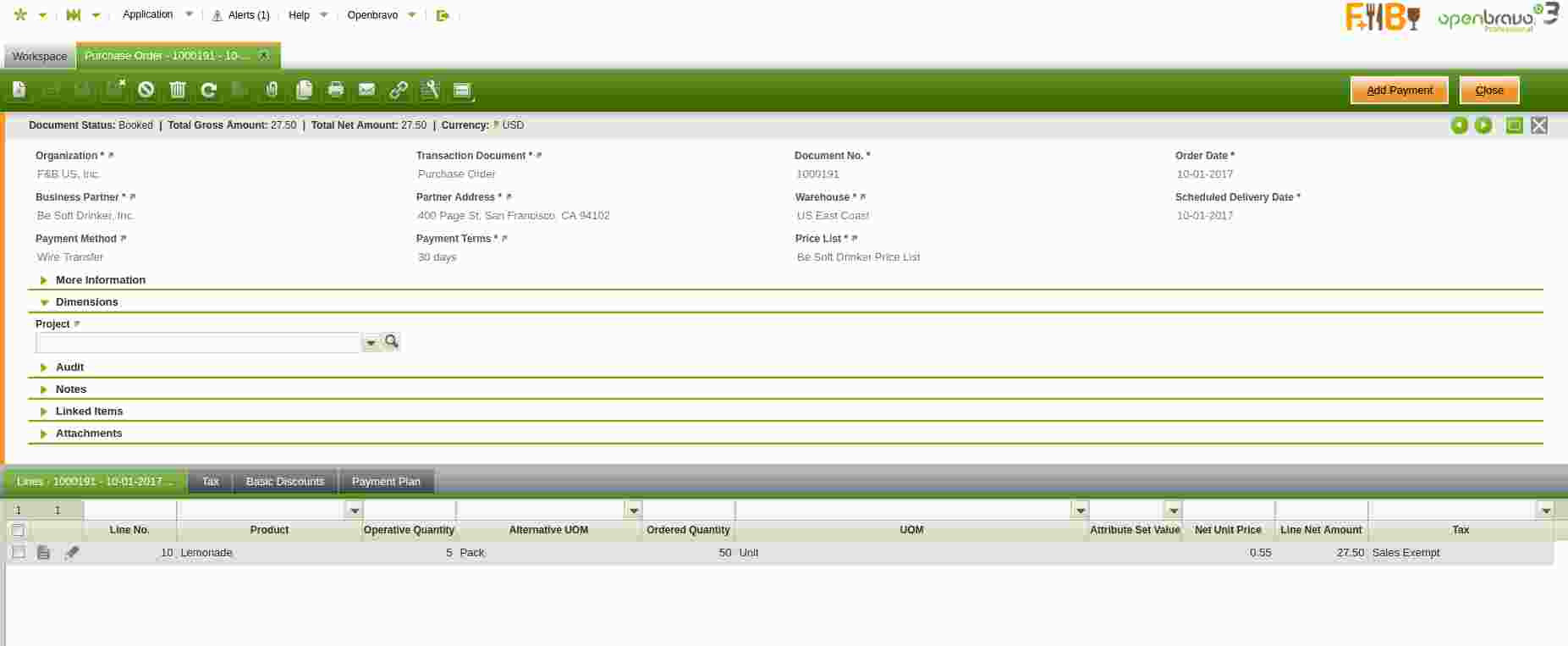
For additional information, please review How to manage alternative UOM wiki article.
¶ Translation tab
"Translation" tabs can be found in many Openbravo windows.
Most type of data can be translated by just selecting the language, entering the translation text and marking it as "Translation".
- If you enter data translated you will see it translated by default once you select that language while logging in Openbravo.
- Besides translated data could be use by external modules to print documents such as a sales invoice to be sent to a customer located abroad.
¶ Linking of documents
It is possible to link documents (orders, receipts or shipments, invoices and payments) in any order that the company might require or even disregard any of these documents in case it is not necessary.
This feature is very useful in businessworkflows such as procurement and sales, because:
- It helps on getting that each document in the workflow can be based on the information contained in the previous one.
- It makes possible to navigate through different documents that conform to a determined flow (quotation, order, shipment, invoice, payment)
- It allows to know in real time the status of any given document.
¶ More Information
"More Information" section can be found in windows such as Purchase Order and Sales Order
- This sections allows you to enter additional information such as Delivery Notes, Supplier Order Reference, Delivery Location, Descriptions and others.
¶ Attachments
"Attachments" section can also be found in windows such as Purchase Order and Sales Order
- An attachment can be whatever kind of file of any format which is relevant to the document being created.
¶ Printing documents
There are documents such as a sales invoices which can be printed, by using the "Print Record" action button.
- it is possible to just print them in a pdf format or print them and besides archive them as an attachment.
To learn more visit Outbound Email/User Guide#Printed Documents Printed Documents
¶ Sending documents by email
There are documents (such as a Orders, Invoices and many others) which can be send by e-mail using Email action button:
- Openbravo allows you to select any additional file/s to be added as an attachment/s together with the document to be sent.
- Email configuration must be previously setup at Client level.
- Besides, it is possible to define a by default Email Subject and Body template for a given document type.
When the Email button is clicked, a popup which can be used to customize the email is shown. This popup contains information which comes from different places:
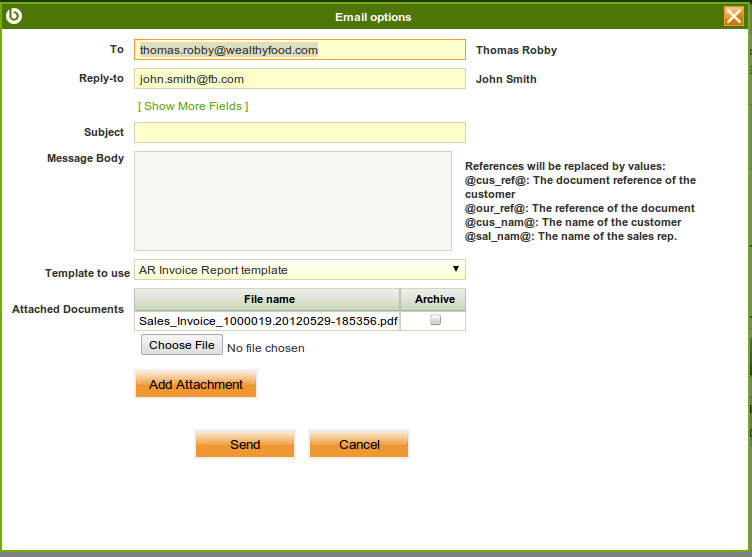
- The To email address comes from the business partner. Therefore, it's important to define the email address of the contacts in the business partners if you want this field to be filled automatically.
- The Reply-To email address comes from the sales representative specified in the document.
- The Subject and Message Body are automatically generated if an email template has been defined for the document.
¶ Tree structure
There are some windows that have a tree icon  available. It represents that the records displayed in that window can be arranged into a hierarchical structure.
When pressing this button, a tree view of the records is displayed, allowing the user to drag & drop them inside the tree structure.
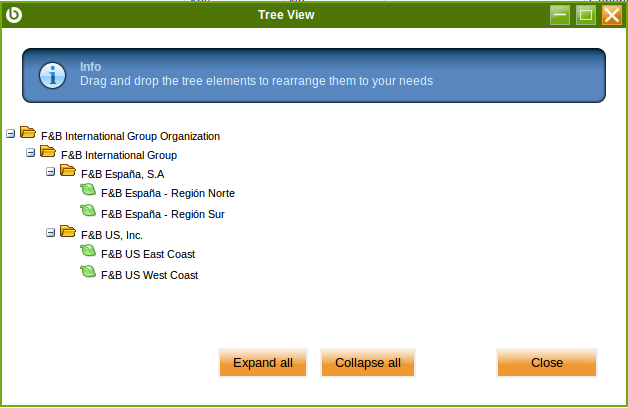
As you can see in the screenshot, there are two types of records: parents, which are represented with a folder icon, and children, represented by a leaf. The type of record is always controlled by the Summary Level flag available for each record. If the Summary Level flag is set, the record is represented as a folder and it can obviously contain child records; on the other hand, if the Summary Level flag is unset, the record will be displayed as a leaf. Remember that you must previously define whether the record is a parent or a leaf before trying to move them into the tree.
Examples of tree structures can be found in the following windows:
¶ Advanced Features
An Advanced Feature is an Openbravo feature hidden in the default "Configuration Script" because it is not commonly used however, it is always possible to unhide an advance feature by using the "System Administrator" role.
There could be advanced features which require to unhide
- a Window
- and/or a Tab
- and/or a Field
Depending on the feature show it is recommended to compile the application and clean the cache.
As a first step configuration template module has to be created to hold below changes. If the template already exists this step is not needed but it might be required to set this module In Development (see previous link).
In general:
-
a Window can be unhide if it is set to "Active". For getting that done it is required to:
- Navigate to the Windows, Tabs and Fields form
- find the Window
- and set it as "Active".
- Once a given Window is Active, it is possible to give access rights to a User Role in the Window Access tab of the Role window.
-
a Tab is shown once it is set to "Active" in the corresponding Window. For getting that done it is required to:
- Navigate to the Windows, Tabs and Fields form
- find the Window
- find the Tab within that window
- and set it as "Active".
- Change the Role to log in and verify the changes.
-
a Field is shown once it is set to "Active" and "Displayed" in the corresponding Window and Tab. For getting that done it is required to:
- Navigate to the Windows, Tabs and Fields form
- find the Window
- find the Tab within that Window
- find the Field within that Tab (remove the filters first)
- and set it as "Active" and "Displayed".
- Change the Role to log in and verify the changes.
Each advanced feature is part of a given application area where what needs to be unhide for that advanced feature to work is described.
Review as an example Volume Discount advanced feature.
¶ Product Selector
As any other selector in Openbravo, the "Product" selector is used to easily select products on transactional windows.
The goal of having a "Product" selector is to allow filtering products by using different criteria. This selector also allows to see product information before the product is selected in an order or in an invoice line for instance.
Products can be managed by different points of view. There are two of them which are the most frecuently used:
- Production & Warehouse department’s point of view
- and Purchase & Sale department’s point of view.
Aiming to support both requirements, Openbravo includes two different product selectors as explained later on.
Anyway, although Openbravo includes two product selector types, it is possible to develop new ones on demand. Furthermore, it would be possible to use any product related field as part of the product selector.
Finally, the product selector is not a mandatory tool as it is always possible to select a product without using it.
¶ Product Selector for "Commercial" purpose
This product selector is used in several windows such as:
- Purchase Order and Sales Order
- as well as Purchase Invoice and Sales Invoice
while selecting a product in either order lines or invoices lines.
The way to get it launched is by pressing the magnifying glass icon located in the Product field of the order/invoice lines.
The main feature of this product selector is the product "commercial" information shown in it.
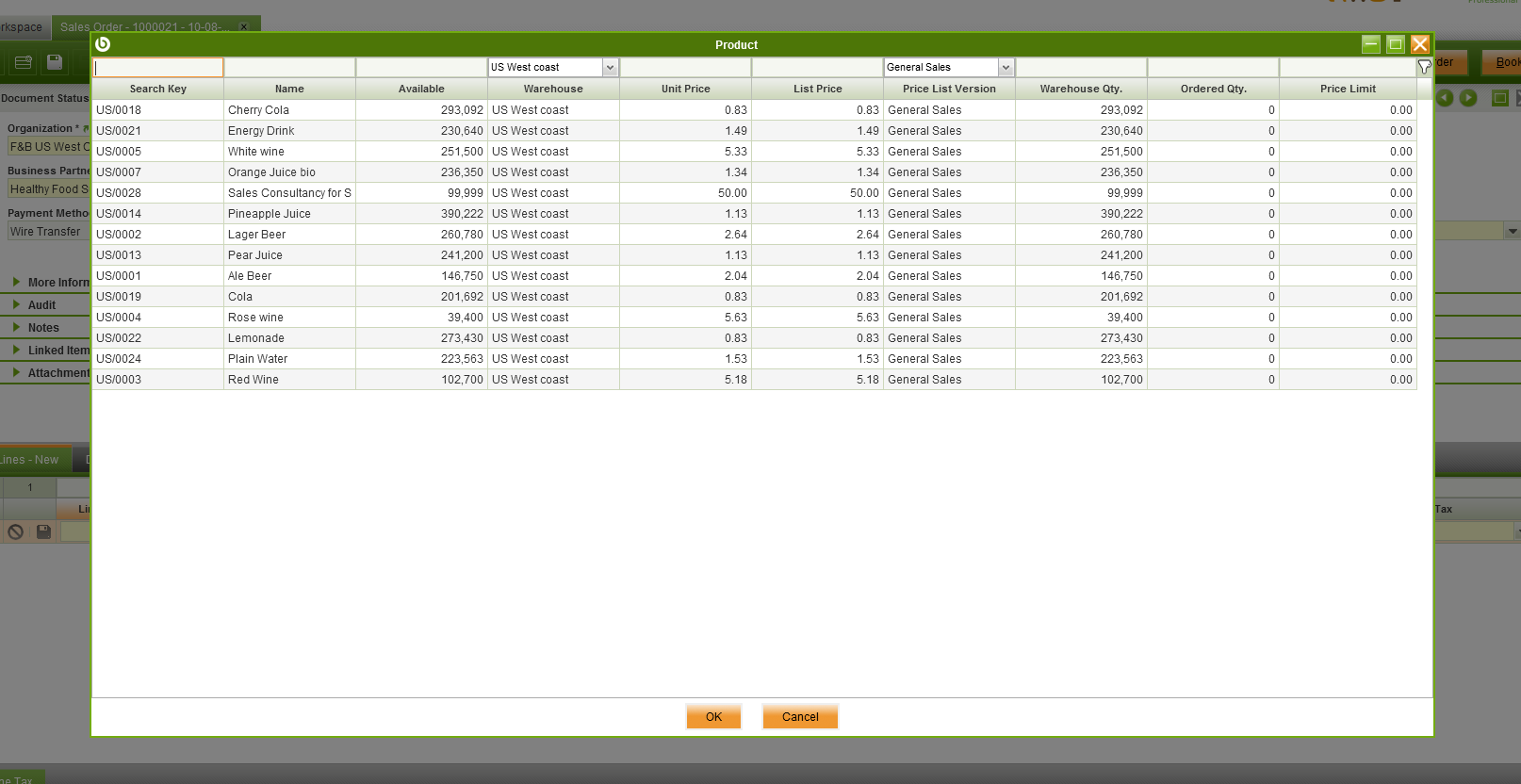
Commercial information such as:
- the Unit Price and the List Price of the product for a given Price List Version
- the Price list version. Although some documents such as invoices and orders include a "Price List" in the header, it is also possible to select a product from a different "Price List Version" in the lines of any of those documents.
- In other words, selecting a "Price List" in the header of a document is to automatize somehow the product selection in the lines of that document later on as the value shown by default in the "Price List Version" field of the Product selector window is the last "Price List Version" related to the "Price List" selected in the header of that document.
- However, the above does not mean that it is not possible to include in a document products from other price lists.
- It is as simple as to change the value shown in the field "Price List Version" of the Product Selector, and then select a product linked to any other price list version.
Note that the prices in a price list are just predefined prices. The user can always change the final price or "Unit Price", once a product has been selected in an invoice or in an order line.
- Finally there are tree fields that give information about product availability:
- Warehouse Qty: quantity that is physically present in stock (based on real facts like receipts, shipments, physical inventory and so on).
- Available: is Warehouse Qty - quantity booked (but not shipped yet) for Sales Orders.
- Ordered Qty: is booked (but not received yet) quantity of the product in the Purchase Orders.
For instance, if there are 10 units of product physically present in stock and there exist a sales order which contains 6 units and a purchase order which contains 2 units of the same product then Warehouse Qty: = 10, Available: = 4 and Ordered Qty: = 2.
¶ Product Selector for "Warehouse" purpose
This product selector is used in several windows such as:
The way to get it launched is by pressing the "magnifiying glass" icon located in the "Product" field of the physical inventory or goods movement lines for instance.
Instead of showing commercial information, this version of the product selector shows warehouse related information as well as product attribute information.
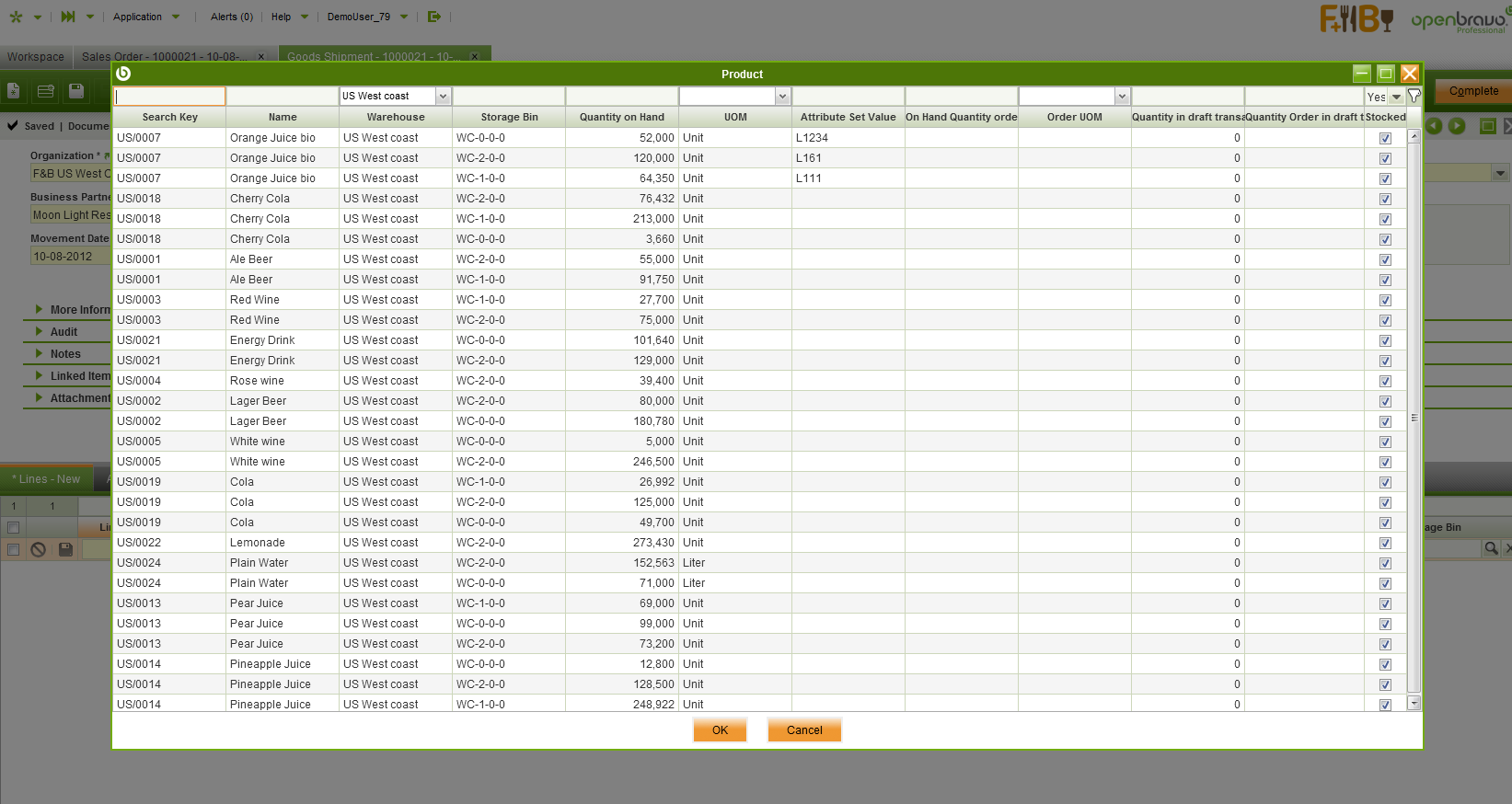
The main columns in this version of the product selector are:
- Attribute set value for those products requiring attributes to be defined, the attribute set value of a product will be shown in this column. Therefore more than one line for a given product could be shown in the product selector, one per each attribute set value.
- Quantity on hand that is the product stock in a given warehouse and storage bin.
- On hand quantity order whenever products have a double unit of measure, this column shows the quantity on hand for the second unit of measure.
For instance, if wine bottle boxes product contain 9 wine bottles, this column will show 1 unit while "Quantity on hand" column will show 9 units.
- Order UOM which is the double unit of measure, if any.
- Quantity in Draft transactions this is the total quantity of the product included in "Draft" documents such as goods receipt in draft status.
- Quantity order in draft transactions same as above but taking into account the double unit of measure, if any.
- Stocked filter allows the product selector to show:
- products with stock, if it is set to "Yes"
- products without stock, if it is set to "No".
- all the products, if it is set to "blank"
The "Stocked" filter value changes depending on the window type where the product selector is being launched. The window type is defined on the Application Dictionary:
- If the window is setup as a "Sales window", for instance a Goods Shipment or a Physical Inventory window, the value of the stocked filter is automatically set to "Yes"
- that is because it is only possible to ship products with stock.
- If the window is not setup as a "Sales window", for instance a Goods Receipt window, the value of the stocked filter is automatically set "No",
- otherwise it will not be possible to register the information required while receiving a product.
It is always possible to change the defaulted value of the filter.
For instance, it's usual to set it to "No" in a Physical Inventory window for entering the "initial" physical inventory of a given set of products or even for all of them.
¶ Project Selector
The project selector allows to easily select any project previously created at the Multiphase Project window.
As usual this selector can display the records either inside a drop down list or inside a grid view where you can easily filter by the available columns.
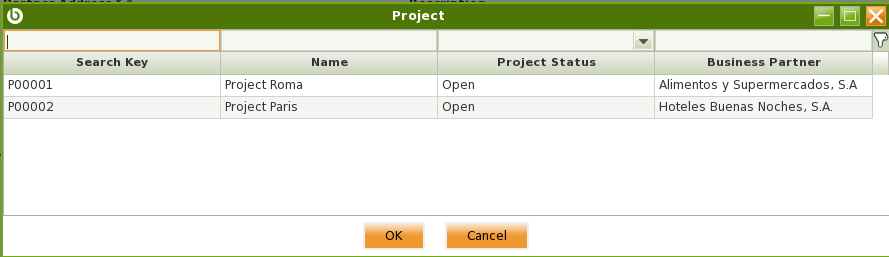
Apart from that, the user can directly type in the selector and it will be filtering the records as you type.
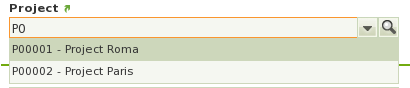
This selector can be found in several windows, like for example:
¶ Business Partner Selector
¶ Locator (Storage Bin) Selector
¶ Analysis Tools
¶ Dimensional Reports
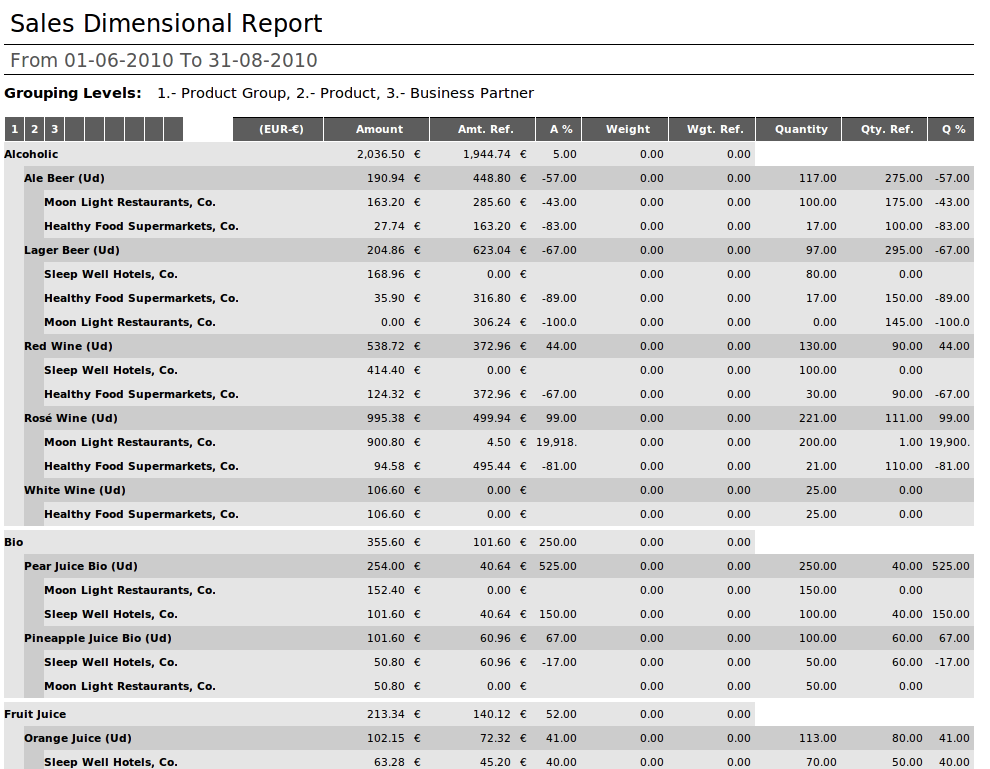
Significant number of reports in Openbravo are multidimensional. This means that the user can select which type of information to include into the report, how to group and sort it and is able to filter out results.
In addition to this a comparative analysis can be made (with variations percentage), by combining in one report information from different periods.
Dimensional report allows to narrow down the information by filling in the available filters. Common Primary Filters parameters are:
- Dates: enter a Date From and Date To to be used while retrieving the data.
- Amounts: enter an Amount Greater Than and an Amount Less Than to be used while retrieving total amounts. Note. Amounts displayed in the reports are usually net amounts.
- Comparative Report: select it in case you need to get a comparative report between two diferent time periods.
Secondary Filters section normally contains Organization, Business Partner / Product Group fields, multiple selector of Business Partner and Product and few other fields which are specific for a particular report.
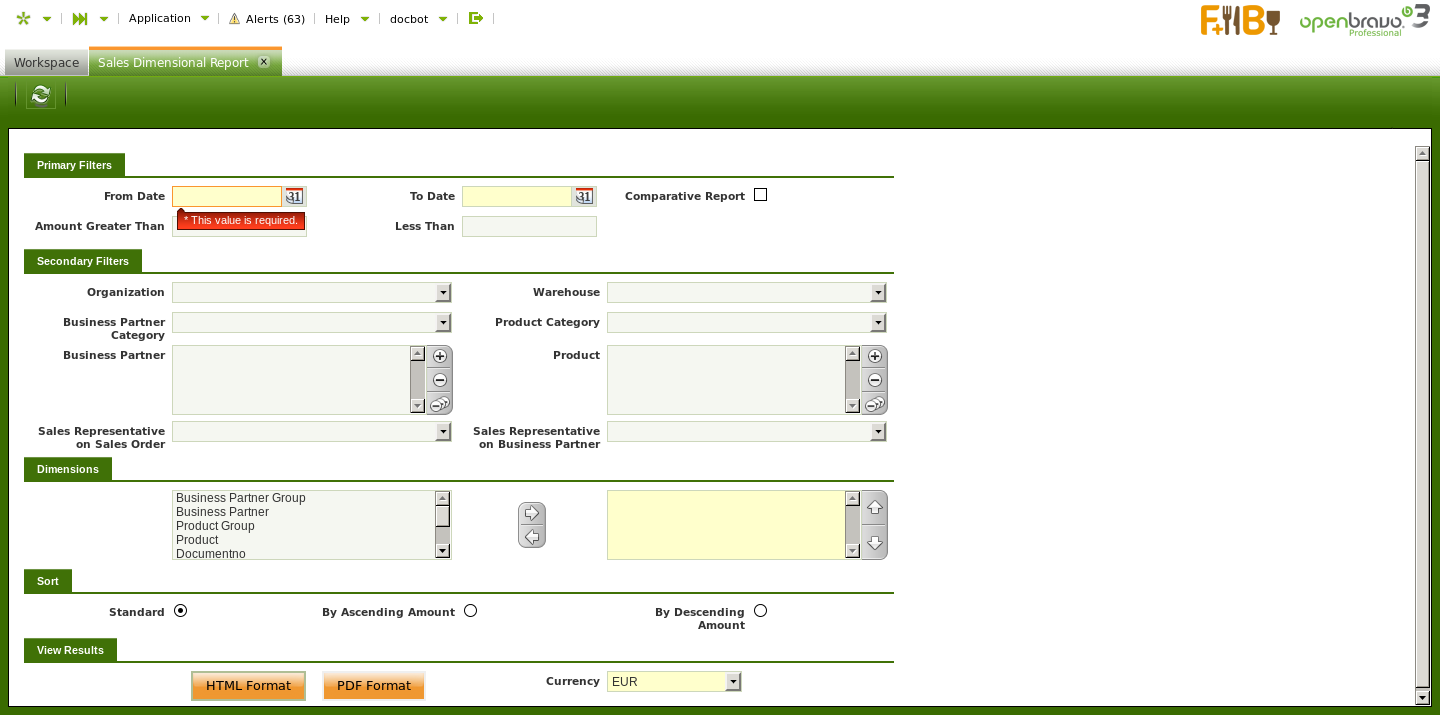
Filtered out information can contain and be grouped by just one or by several Dimensions or all of them. It is possible to add and sort those Dimensions as required. Common Dimensions are:
- Business Partner Group
- Business Partner
- Product Group
- Product
- Document Number
- Others: which are specific for a particular report
It is possible to Sort the outcome data in a Standard way (normally alphabetically), By Ascending or By Descending Amounts.
Finally set Currency for the amounts in the report. The field is defaulted to the system currency.
Report outcome can be viewed at least in HTML and PDF formats (XLS export is available for some reports).