← Kembali ke Procurement Management
¶ Introduction
Manage Requisition window is intended to be used by the procurement team as it provides an overall picture of the items needed.
At the end of the day the procurement team is the one to decide what to do with the requisitions created by other members of the organization or business unit.
¶ Header
Procurement management team can perform several actions regarding requisitions.
This window allows them to manage requisitions regardless their current status, therefore they can change or close a requisition and create purchase orders for those demands. 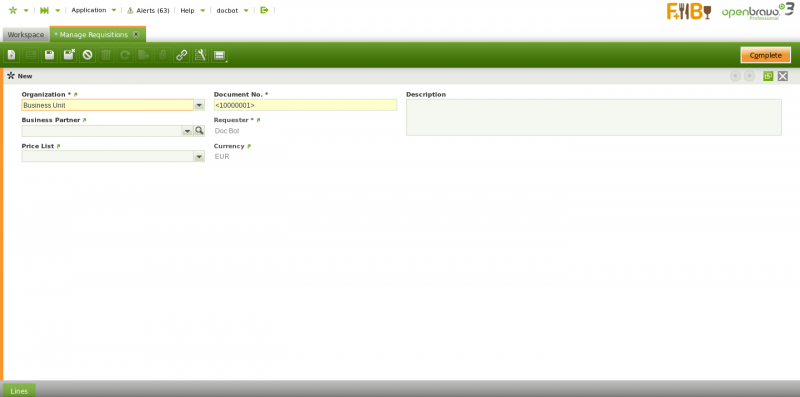
A requisition with status "Completed" can always be changed, if required. As always the way to do that is to get it first reactivated and then changed and booked.
It is also possible to close a requisition in case there is not need of the item/s it includes anymore, by using the menu button "Close" and then select the action "Close". Requisition lines status will then be changed to "Cancelled".
Finally, it is also possible to create purchase orders for those requisitions in status "Complete", by using the menu button "Create Purchase Order". 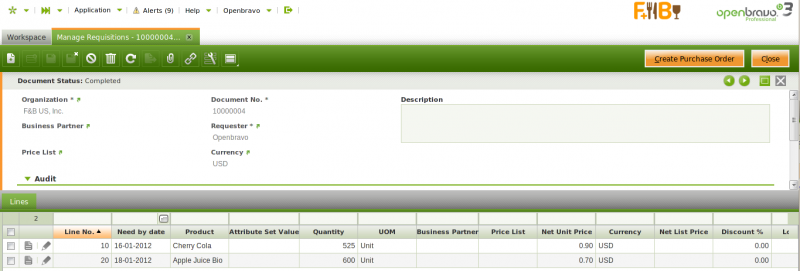
This time, a new window is shown for you to fill in some data by taking into account that:
- If there are different suppliers in the requisition lines as well as price list:
- the *defaulted ones'' entered in the window "Create Purchase Order"*will be the ones used'' in the purchase order.
- If there are different suppliers in the requisition lines as well as price list, and the end-user does not enter any defaulted ones in the window "Create Purchase Order":
- the ones in the requisition lines will be the ones used in the purchase orders.
- If all the requisition lines have the same supplier and price list:
- there will not be any need of selected defaulted ones in the window "Create Purchase Order", besides only one purchase order will be created.
Openbravo informs about the purchase order/s number/s created after pressing OK button in the "Create Purchase Order" window. This action links the requisition and the purchase order, and besides a purchase order line is created for each requisition line:
- A requisition linked to a purchase order changes its status from Completed to Closed.
- A requisition line linked to a purchase order line changes its status from Open to Closed.
Any purchase order created from a Requisition:
- will be listed in the "Purchase Order" window.
- will have a "Booked" status
- and will contain data inherited from the Requisition, data such as:
- Order Date
- Scheduled Delivery Date
- Business Partner
- Price List
- Product/s
¶ Lines
Procurement team can perform a set of actions regarding requisitions lines. It is possible for them to either create lines or product demands or to cancel them.
- New product demands can be manually created within a requisition by just adding new requisition lines before creating a purchase order
- Existing product demands or requisition lines can be cancelled if they are are not required anymore, by using the header button "Change Status".
¶ Matched PO Lines
This tab allows the procurement management team to either review the purchase order line automatically linked to a requisition line or to manually link an existing purchase order line to the corresponding requisition line.