¶ Objective
In a company, payroll is the sum of all financial records of salaries for an employee, wages, bonuses and deductions.
In accounting, payroll refers to the amount paid to employees for services they provided during a certain period of time.
Payroll plays a major role in a company for several reasons. From an accounting perspective, payroll is crucial because payroll and payroll taxes considerably affect the net income of most companies and they are subject to laws and regulations (for instance in the US payroll is subject to federal and state regulations, in Spain payroll is subject to income taxes).
¶ Recommended articles
Payroll management requires to understand how to create the [accounts](/Account_Tree) that are going to be used while creating the corresponding G/L Journal entries for payroll accounting.
It is highly recommended as well to know how to create a G/L Item, as well as the way they are used in creating either a withdrawal transaction in a [Financial Account](/Financial_Account#Adding_financial_account_transactions).
¶ Execution Steps
ℹ️ Catatan: This articles explains an example of payroll accounting using an Spanish general ledger configuration.
In Openbravo, the company in this example may need to:
- post an employee's payroll to the ledger
- and pay the employee's payroll
In Openbravo above described accounting requires the creation of a G/L Journal which contains the entries to be post to the ledger.
ℹ️ Catatan: It is important to remark that Openbravo does not included an HHRR module by now, therefore the amounts to be registered in a General Ledger journal need to be provided by either a financial advice company, or a consultancy company or a specific HHRR software
After that, the company in this example can make the payroll payment from the G/L Journal itself by creating a "G/L Item Payment".
Additionally, the payroll payment can also be made:
- by creating a "G/L Item withdrawal transaction" in the [Financial Account](/Financial_Account) window.
For additional information review this [article](/How_to_manage_payroll_accounting_and_payment#In_the_Financial_Account)
- or by creating a "G/L Item payment" in the [Payment Out](/Payment_Out) window.
For additional information review this [article](/Payment_Method#Example_4/_Payroll_Payment_by_Wire_Transfer).
In anyway, a G/L_Item needs to be created first.
This "G/L Item" can be named "Remuneraciones pendientes de pago" according to the Spanish Chart of Accounts.
This G/L item needs to be linked to the corresponding liability account both in the Debit and in the Credit side. For instance the account (4650) according to the Spanish Chart of Accounts.
¶ G/L Item creation
The company in this example needs to create and use a G/L Item for accounting the payroll payment transaction.
This G/L item needs to include the right "Debit" and "Credit" accounts in the accounting tab, therefore:
- Once the GL item has been created, it is required to navigate to the [Accounting](/G/L_Item#Accounting) tab of the G/L item window
- and then create a new record for each general ledger and assign the same [account](/Account_Tree) for debit and credit.
Going back to our example, the account to use according to the Spanish General Ledger configuration is:
- the account 4650 - "Remuneraciones pendientes de pago"
¶ G/L Journal creation
As already mentioned the company can use a G/L Journal to account and employee's payroll.
The accounting of the payroll of an employee named "MR. Smith" using a Spanish general ledger configuration looks like as shown below if having below detailed figures:
- Pay Gross = 1,096.25 EUR,
- Social security paid by the company (employer's contribution) = 372.63 EUR,
- Social security paid by the employee (labor share) = 108.18 EUR,
- Income Tax = 8.6%
| Account | Debit | Credit |
| (640001) "Sueldos y salarios" | MR. Smith Pay gross: 1.096,25 EUR | |
| (642001) "Seguridad Social a cargo de la empresa" | MR. Smith Social Security paid by the company: 372,63 EUR | |
| (476001) "Organismos de la Seguridad Social accreedora" | MR. Smith Social Security paid by the company + MR. Smith Social Security paid by MR. Smith 480,81 EUR | |
| (475101) "H.P. acreedor por retenciones practicadas" | MR. Smith withholding Income Tax (8.6%) 94,27 EUR | |
| (465000) "Remuneraciones pendientes de pago" | MR. Smith Payroll pending payment: 893,80 EUR |
The company in this example needs to create a G/L Journal that includes each of the accounting entries listed above as separated G/L Journal lines:
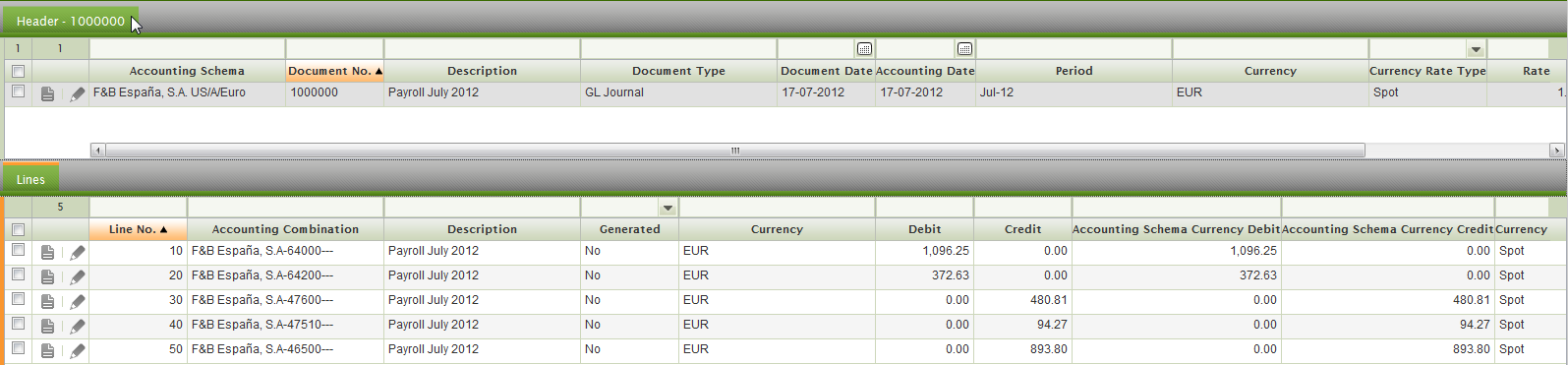
There is a checkbox named "Template" in the G/L Journal header which allows to use the content of a G/L journal as a template.
This feature is very useful while accounting payrolls. The way to configure a G/L Journal as a template and make it works is explained here.
ℹ️ Catatan: There is an Income tax report in Spain named "Modelo 190" which can be generated and submitted as a valid file from Openbravo to the Spanish tax authorities. This file does not include Employee Income withholding as Openbravo does not manage HHRR and therefore payrolls.
¶ Creation of the payment transaction
Mr. Smith payroll payment can be directly made from the G/L Journal used to post Mr. Smith payroll to the ledger.
The way it works is described below:
- Navigate to the G/L Journal window, and then to the Lines tab.
- Find the line which has the payroll payment amount pending to be paid.
In our example, that is the line linked to the account 45600) for a total amount of 893.80 EUR.
- Select the checkbox "Open Items" and enter below detailed payment related information:
- the [Financial](/Financial_Account) where the money is going to be taken from.
- a [Payment Method](/Payment_Method) which will drive the way the payment made is going to be managed.
As a suggestion the payment method used can be "Wire Transfer". This payment method can be configured to require an additional execution step which once executed makes that the payment is automatically withdrawn from the financial account.
Please review the example 4 of the [Payment Method](/Payment_Method#Example_4/_Payroll_Payment_by_Wire_Transfer) article. This article describes another way of managing payroll payments. This time by creating and processing the payroll payment directly from the [Payment Out](/Payment_Out) window.
-
- the [G/L Item](/G/L_Item) created.
This G/L Item needs to be related to the same account as the one in the line which has the payroll payment amount. In our example the account 465000.
-
- a payment date
- and finally a [Business Partner](/Business_Partner).
In our example the business partner is an employee "Mr. Smith" who needs to be set up as a "Vendor".
- Complete and Post the G/L Journal.
Upon G/L Journal posting the "Journal Entries Report" window is opened showing the [entries posted to the ledger](/How_to_manage_payroll_accounting_and_payment#G-2FL_Journal_creation).
Going back to the G/L Journal, Openbravo informs about the number of payments created.
The "G/L Item Payment" is accessible from the "Line" where the checkbox "Open Items" was selected.
It is possible to navigate to the payment from the "Payment" field.
This "G/L Item Payment" is now a payment automatically populated in the [Payment Out](/Payment_Out) window.
This "G/L Item Payment" can be post to the ledger from the payment out window if the [payment method](/Payment_Method#Accounting_Payment_Workflow) used allows it.
"G/L Item Payment" posting looks like:
| Account | Debit | Credit |
| GL Item Debit Account (465000) "Remuneraciones pendientes de pago" | 893,8 EUR | |
| ["Upon Payment Use" Account](/Financial_Account#Payment_Method) | 893,8 EUR |
Under this scenario the "G/L Item Payment" and the "G/L Journal" are linked to each other in the sense that:
- It will not be possible to reactivate and therefore change the "G/L Journal" unless the related payment/s are deleted completely, that means that the payment lines and header need to be deleted.
That is done by using the "Reactivate and Delete Lines" option as described in the [Reactivating a Payment](/Payment_Out#Reactivating_a_payment) article.
¶ Payroll payment creation in the Financial Account
As already mentioned payroll payment can also be created in the Financial Account where the amount is going to be withdrawn. This step could or could not have fees.
The company in this example needs to:
- navigate to the [Financial Account](/Financial_Account) window
- select the financial account or bank where the amount is going to be withdrawn, for instance Bank A.
- press the process button Add Transaction
- once in the "Add Transaction" window, select the Transaction Type "GL Item"
- enter a Transaction Date
- select the GL Item previously created
- and finally indicate the Paid Out amount or "Pay Gross"
This new transaction is then shown in the Transaction tab of the Financial Account window as a withdrawal.
The next step is to post the payment transaction.
It is possible to manually post it by using the process button Post or it could be automatically posted if the Accounting Server Process is enabled in the Process Request window.
Payroll payment posting looks like:
| Account | Debit | Credit |
| GL Item Debit (465000) "Remuneraciones pendientes de pago" | 8.938,0 EUR | |
| ["Upon Withdrawal Use" Account](/Financial_Account#Payment_Method) | 8.938,0 EUR |
¶ Creation of a bank fee
It could happen that the bank adds a fee to be paid by the company, therefore the company in this example needs to create the payroll payment transaction in any of the ways described above and besides an additional transaction in the financial account to reflect the bank fee.
The way to do that is:
- press once more the process button Add Transaction
- select the Transaction Type "Fee"
- enter a Transaction Date
- and finally indicate the Paid Out amount of the fee, for instance 10.00 USD or 10,00 EUR depending on the currency.
ℹ️ Catatan: A bank fee can also be registered in a financial account by using a previously created G/L Item named "Bank Interest". Bank Interest accounting could be configured as '7010 Interest income' for credit and '7020 Interest expense' for debit.
Fee transaction can also be posted same way as the payment transaction.
Fee posting will look like:
| Account | Debit | Credit |
| [Bank Fee Account](/Financial_Account#Accounting_Configuration) | Paid Out Amount of the fee | |
| ["Upon Withdrawal Use" Account](/Financial_Account#Payment_Method) | Paid Out Amount of the fee |
¶ Result
This completes the manage and the payment of employee's payroll. As a result:
- the accounting for the payroll is reflected in the corresponding G/L Journal.
- and the payment of the payroll is reflected in the corresponding Financial Account.